Individual trajectories
Review object-specific tracking overlays and movement paths.
 View products한국어
WINDOWS · SCIENTIFIC IMAGING
Record what you see through the microscope. Explore changes over time, surface wettability, and biological movement.
Released · Available on Microsoft Store
01 / CAPTURE & ORGANIZE
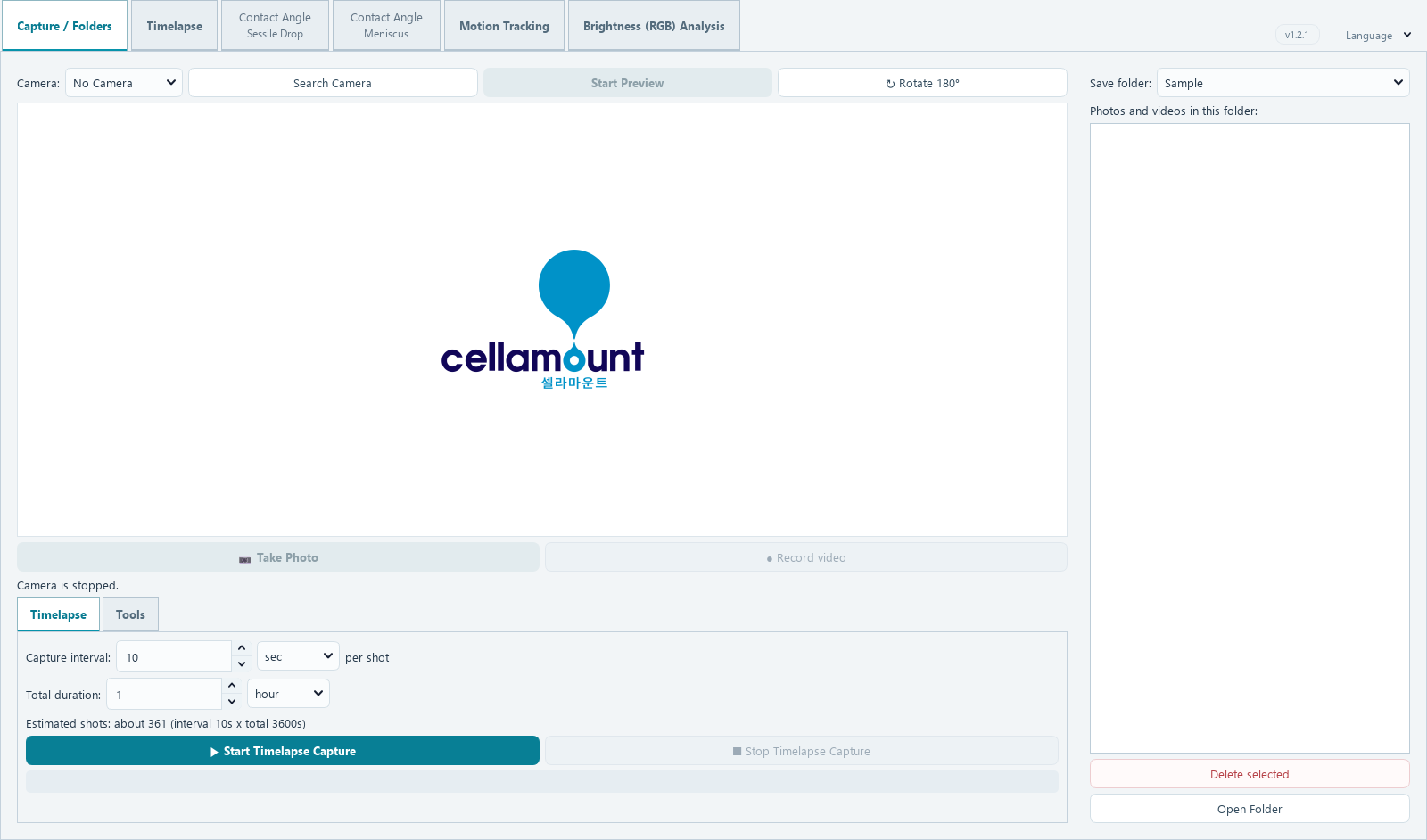
View the camera feed and save photos or video. Organize observations in folders so you can return to them for analysis.
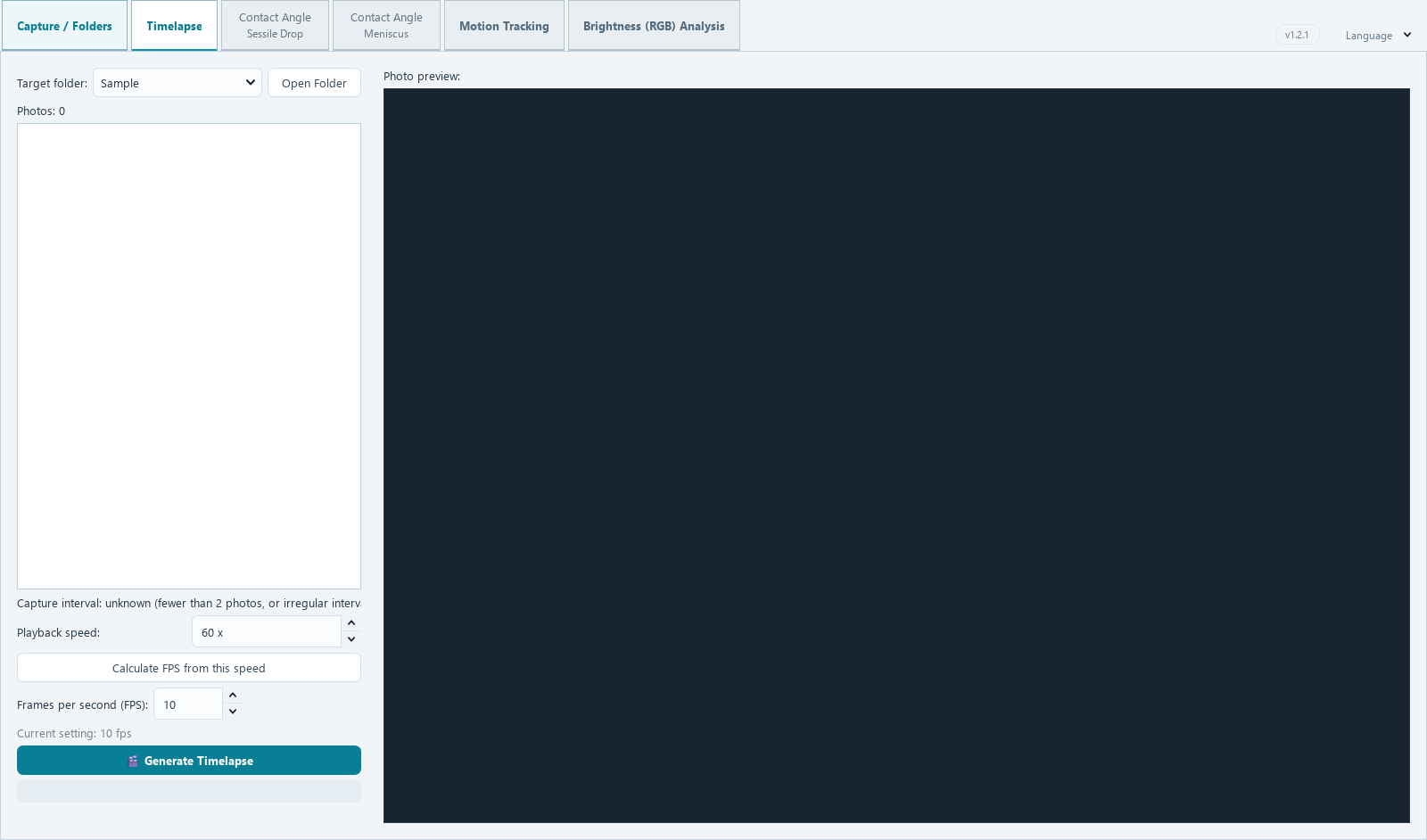
02 / TIME-LAPSE
Record images at a chosen interval and duration, then turn an image folder into a time-lapse video. Adjust playback speed and FPS to explore slow processes such as germination and growth.
03 / CONTACT ANGLE · SESSILE DROP
Inspect the outline and baseline of a drop on a solid surface and analyze its contact angle. Compare the original image with the analysis overlay for wettability education and research.
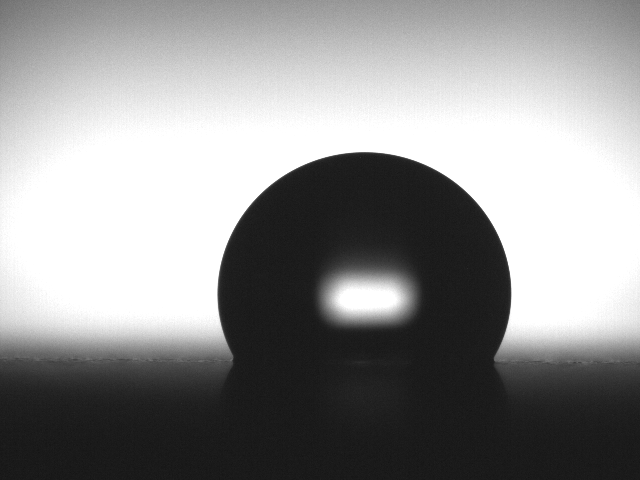
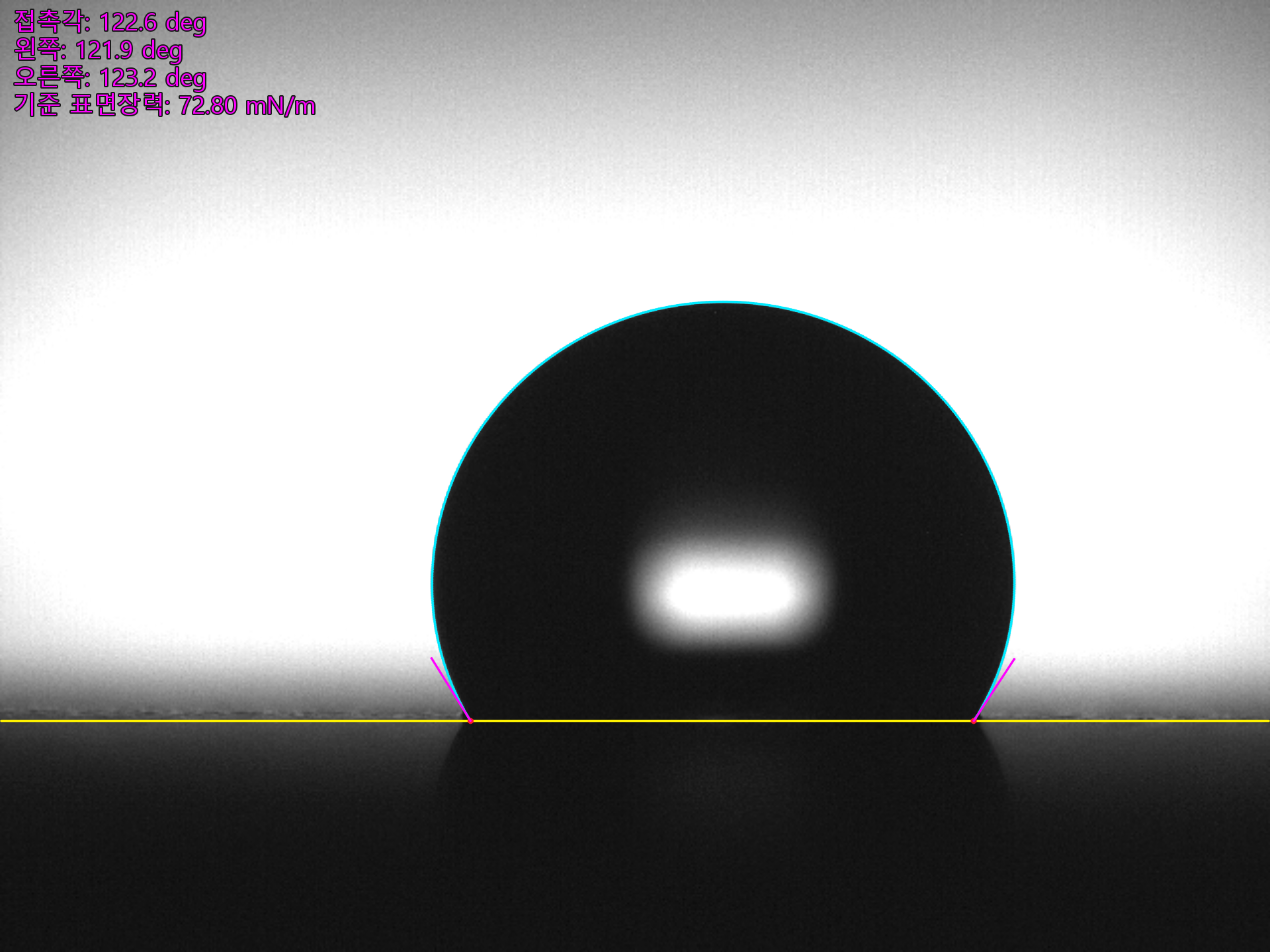
Review the drop boundary and left and right contact angles on the overlay. The application brings the image and analysis information together.
The application screen shows a separate sample.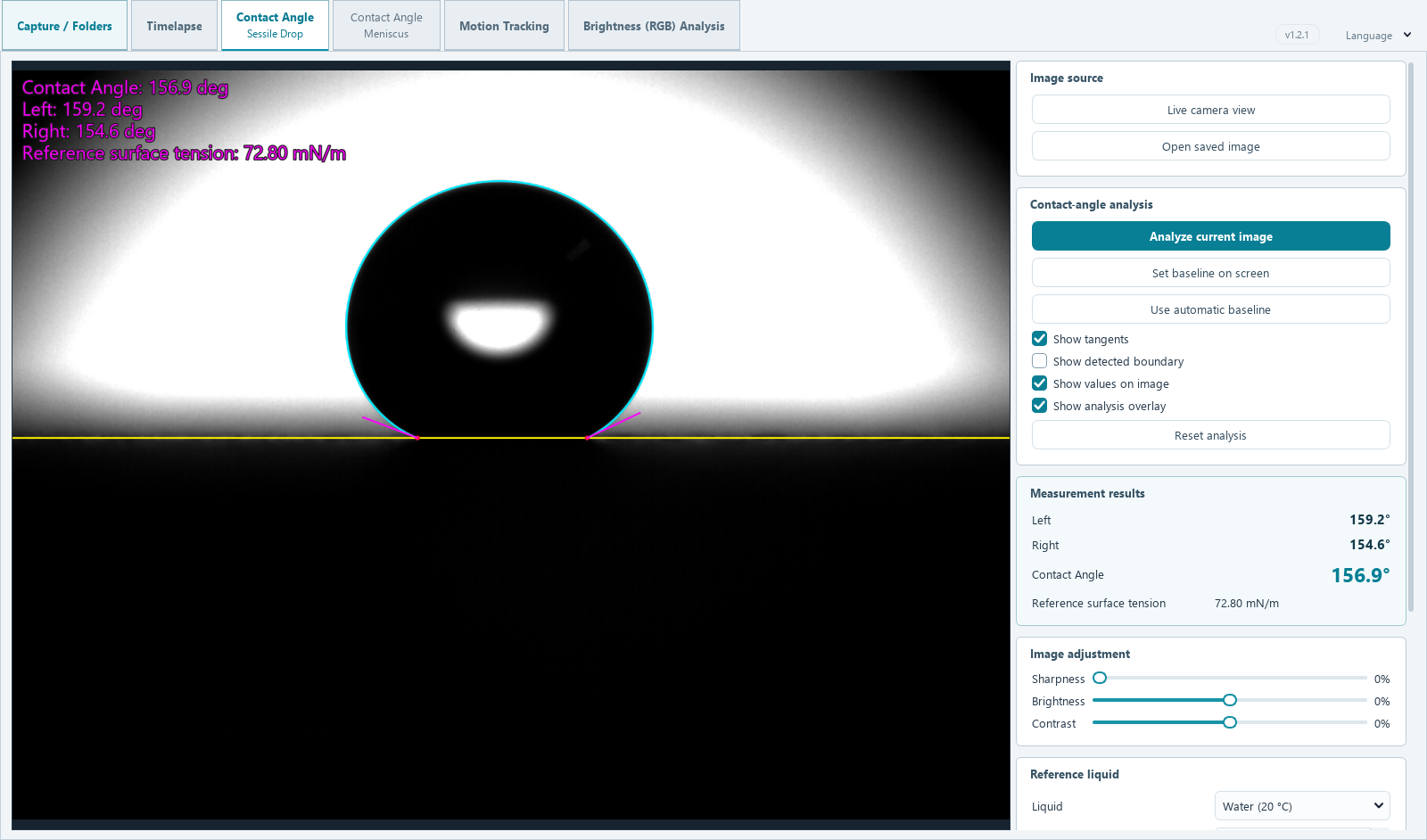
04 / CONTACT ANGLE · MENISCUS
Observe the meniscus around a thin specimen and analyze the left and right contact angles. Complement sessile drop analysis when exploring wettability across different specimen geometries.
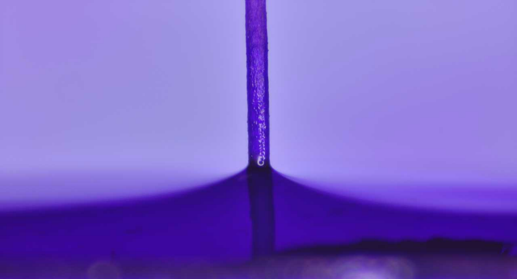
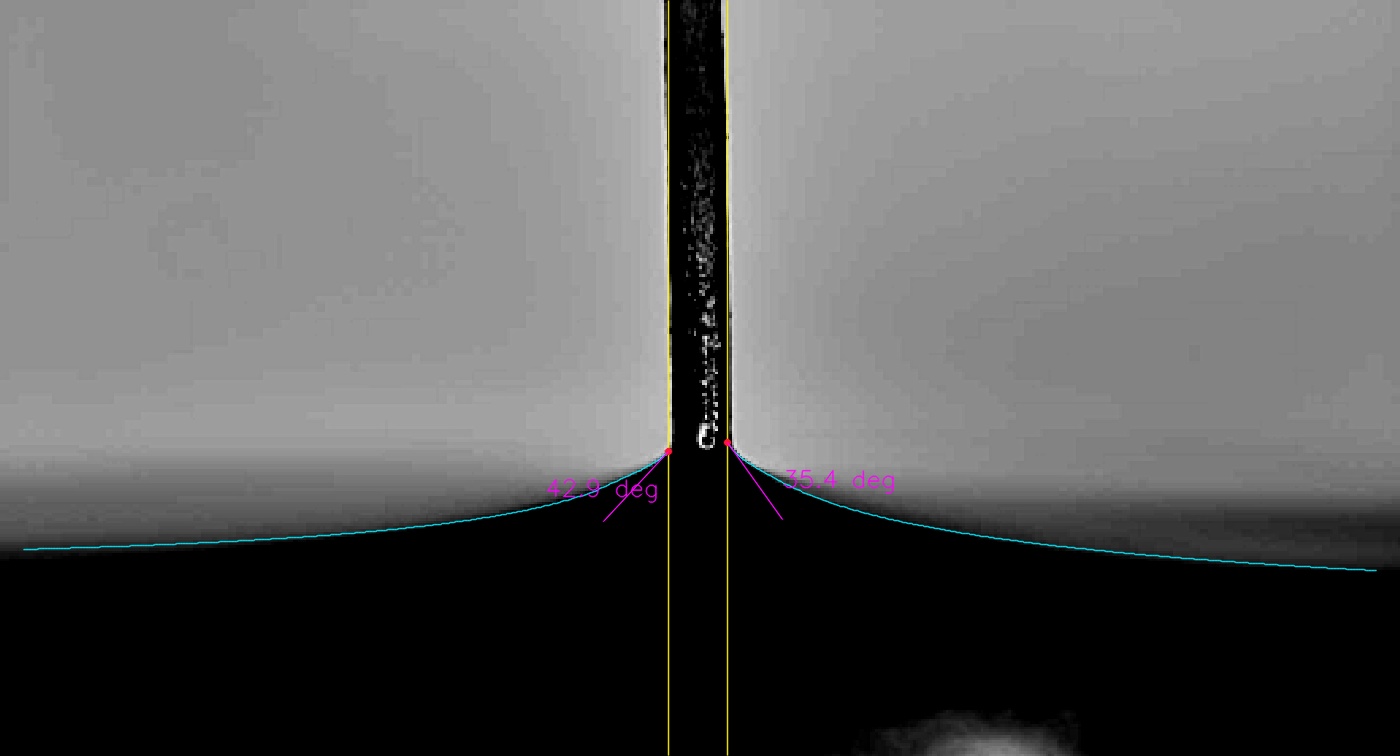
Inspect the liquid contour and the contact region around the specimen using an overlay. Use the image alongside the application results to explain wetting behavior.
The application screen shows a separate sample.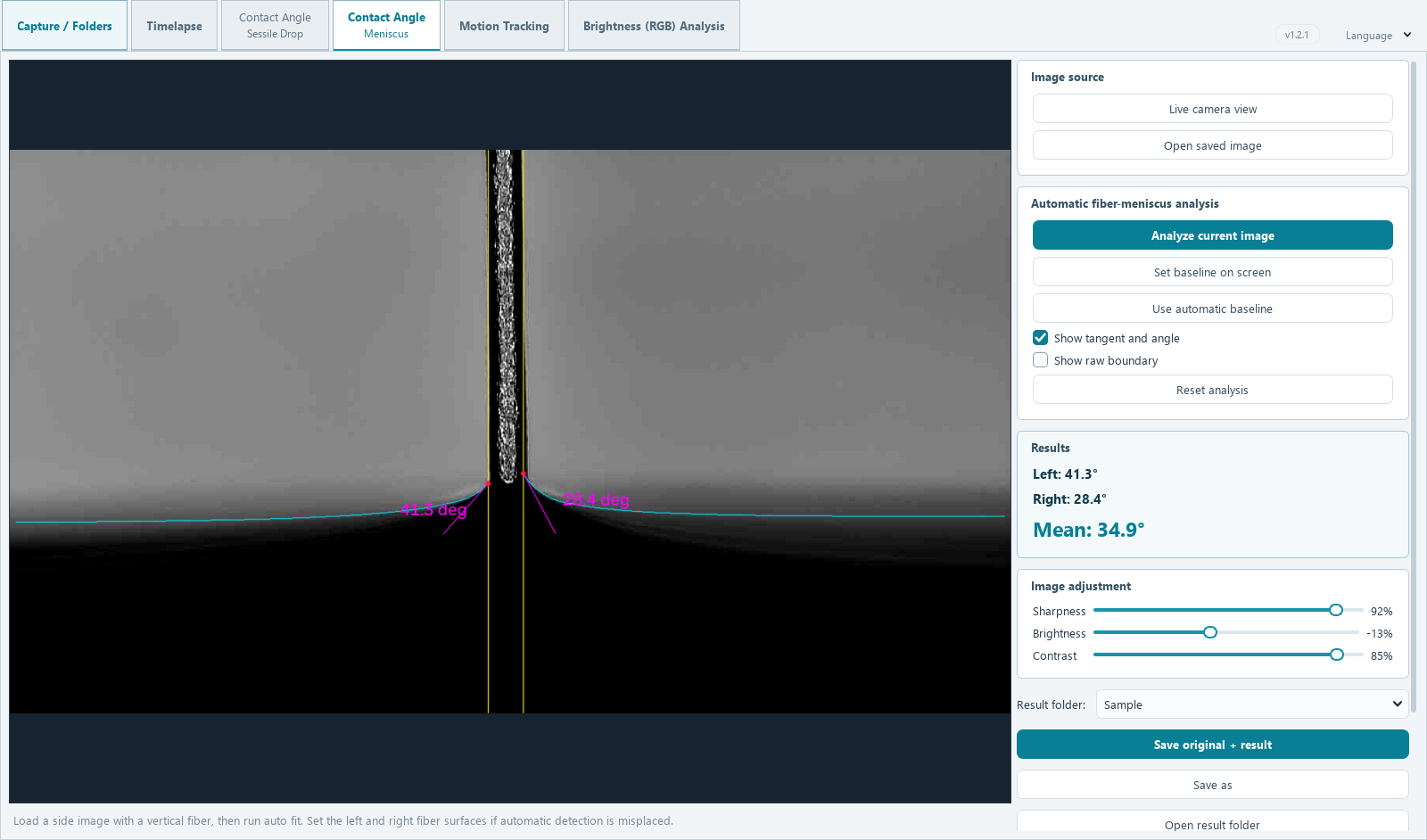
05 / MOTION & TRAJECTORY TRACKING
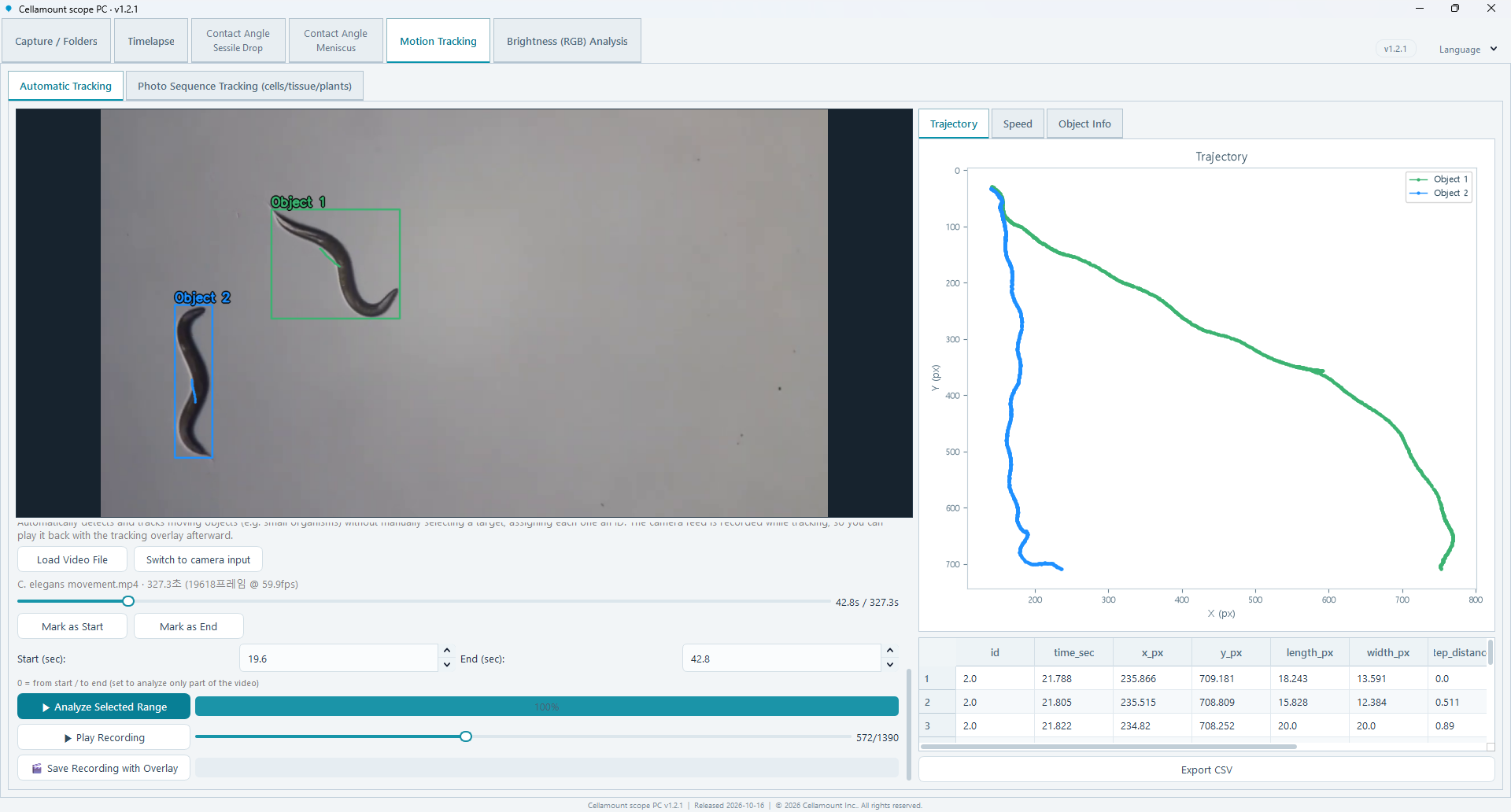
Explore object tracking with an actual recording of C. elegans. Follow individual moving objects and review their trajectories and speed information.
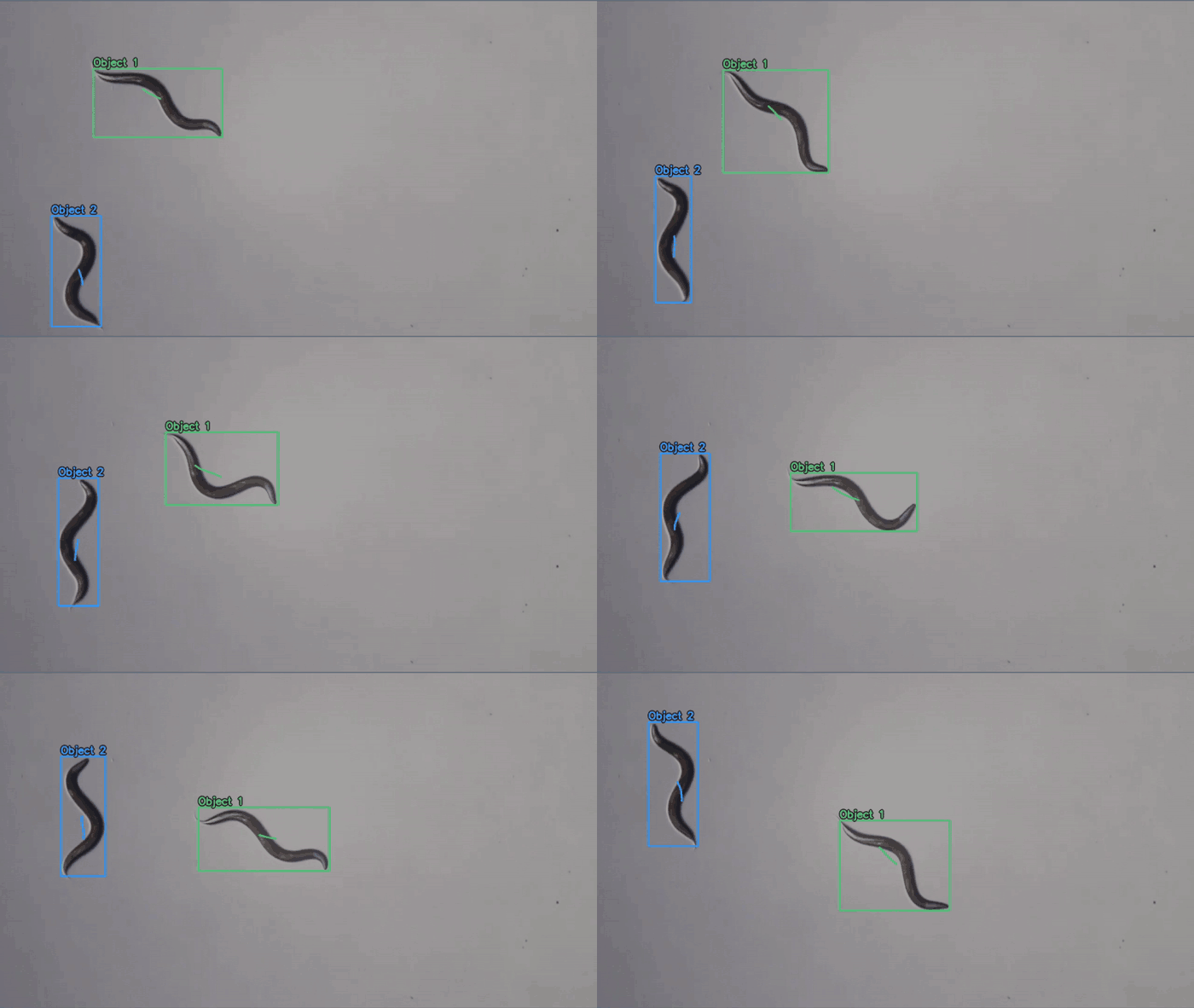
Review object-specific tracking overlays and movement paths.
Connect displacement and speed information with the observation record.
Review tracking results and export CSV data for further work.
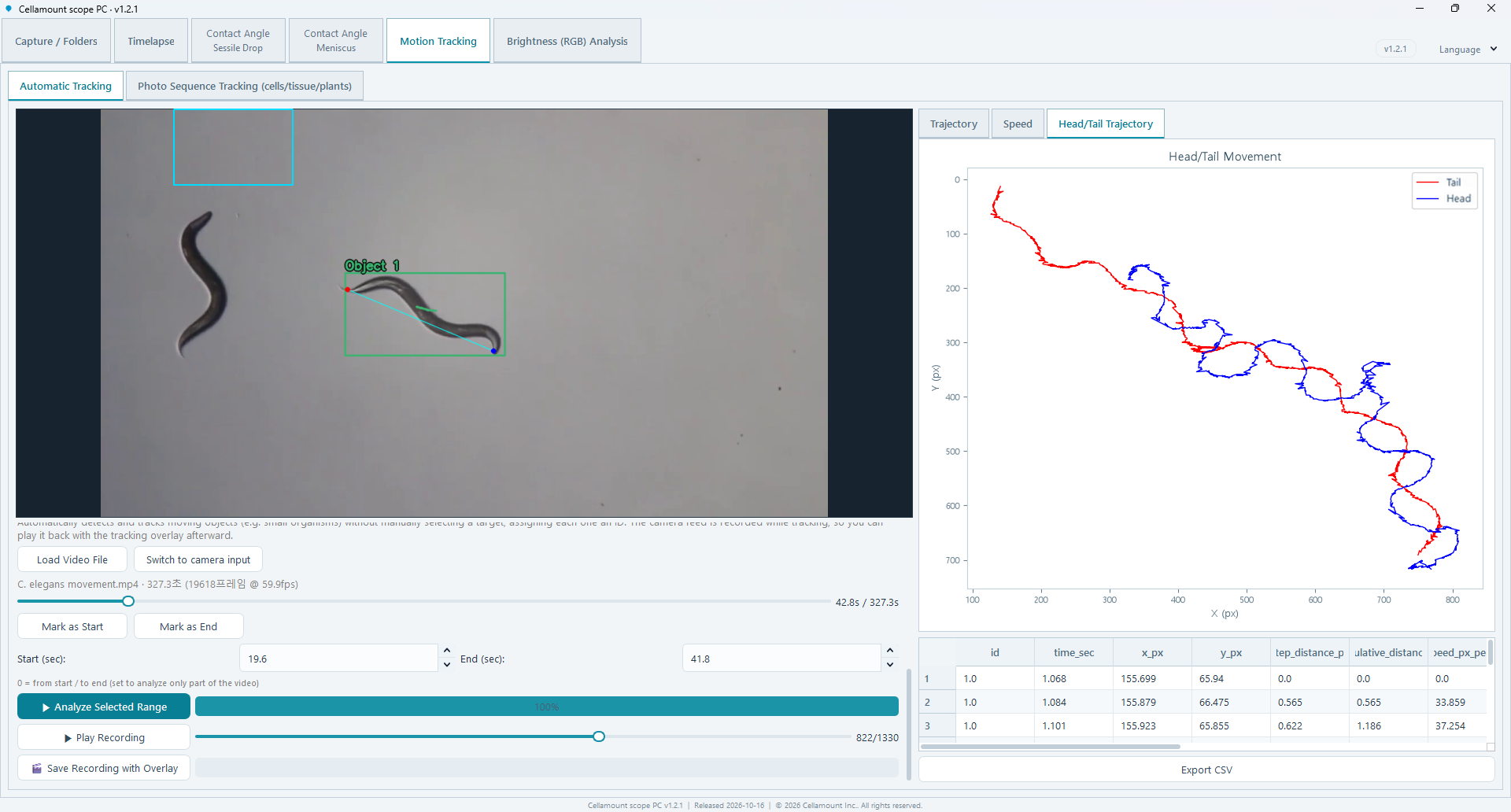
SINGLE-OBJECT / ENDPOINT TRACKING
For a selected single object, track and analyze the movement of each endpoint (head and tail) separately. Compare both paths to explore how each end moves alongside the overall trajectory.
FOR EDUCATION & RESEARCH
Tell us about your imaging setup and analysis goals to discuss use and adoption.
Product & adoption inquiry